



Registering for a CM/ECF Account
Only Attorneys and Pro Se Litigants May E-File
All other interested parties, including journalists and interested members of the public, may register to receive email notices of new filings and other case activity. This type of CM/ECF registration is called “Special Mailing Group” (SMG) registration. SMG registrants may not e-file.
The technical requirements for ECF are quite minimal and inexpensive (or even free). In fact, if you are reading this online, you probably have most of what you need already.
- A computer, access to the internet, and an email account you can check on a daily basis so you can e-file your documents and receive notifications from the Court. The browsers extensively tested and found compatible with ECF are Firefox and Internet Explorer; Safari and Chrome may also be compatible but are not officially supported. We have no information about other browsers.
- A scanner to scan documents that are only in paper format (like exhibits).
- A printer/copier because each documents that you e-file will also need to be sent to the judge in hard copy (the judge’s copy is called the “chambers copy”).
- A word processing program to create your documents. Some word processing programs incorporate a .pdf writer (see #5 below).
- A .pdf reader and a .pdf writer, which enables you to convert word processing documents into .pdf format. Only .pdf documents are accepted for e-filing. Adobe Acrobat is the most common program used. The reader (Adobe Acrobat Reader) is free, but the writer is not. Some word processing programs come with a .pdf writer already installed. Macintosh OS X has a built-in .pdf writer. View our .pdf writer information page.
NOTE: Effective May 1, 2020, and until further notice, pro se litigants whose names appear on existing cases before this court may register to become ECF users and may file documents electronically without first obtaining a judge’s permission. Initial complaints and other case-opening documents must still be filed manually or by mail/private carrier.
If you have an existing pro se e-filing account, and you wish to e-file in another case in which your name is listed, send an email to ECFHelpDesk@cand.uscourts.gov to link your account to that case.
After a complaint is filed and a case is opened, the docket and all documents in the case are maintained in an electronic format so that they can be viewed on a computer. Attorneys are required to file documents electronically (“e-file”). Parties representing themselves are not required to e-file, but many choose to do so. There are no registration costs and no fees for e-filing.
Do you want to e-file?
Advantages:
- You can e-file from any computer.
- You do not have to go to the courthouse to file your court papers.
- You have until midnight on the day your filing is due to e-file (instead of 4:00 p.m. for delivery to the Clerk’s Office for paper filings).
- You do not need to mail paper copies to the court or other parties.
- You will likely have more time to respond to any motion filed by the opposing side because you can receive and review the motion as soon as it is filed, instead of having to wait for your copy to arrive by mail.
Issues to Consider:
- You must have all necessary hardware and software required to e-file, so there may be some initial cost.
- You may require some training in how to convert documents to PDFs, and how to log into and use the court’s electronic case filing system (“ECF”) to file documents. (Free training on this is available on the court’s website.)
- You will not receive documents in paper, so you will be responsible for checking your e-mail frequently to make sure you read filings and court orders. You will need to print out all documents yourself.
- See the current Electronic Public Access Fee Schedule for information on e-filing costs. Please note that:
- You will owe no fees until you accrue more than $30.00 of charges in a quarterly billing cycle.
- Each party receives one free copy of all e-filed documents, via notice of electronic filing or notice of docket activity.
- No fee is charged for access to judicial opinions.
Registration Instructions for Pro Se Litigants
Step One
Each person who is requesting to e-file, must have a PACER account.
Once you have a PACER account, open the PACER link below in a new tab by right clicking the link and choosing “Open link in new tab” : https://pacer.uscourts.gov/.
After the tab is open, you can toggle back and forth between these instructions tab and the PACER tab.
On the PACER tab, click on the “Log in to…” on the top right corner. After clicking the link, you will have three boxes. Choose the box that says, “Manage PACER Account.”

Step Two
After you have entered your login, you should see tabs below your account information. Click on the tab that says “Maintenance.”
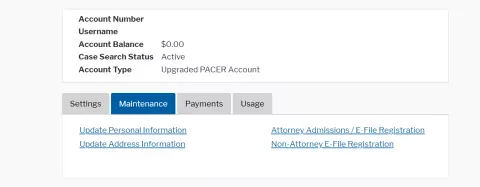
Choose the hyperlink that says, “Non-Attorney E-File Registration.”
Step Three
Choose court type as “U.S. District Courts.”
Choose court as “California Northern District Court.”
Choose role in court as “Party.”
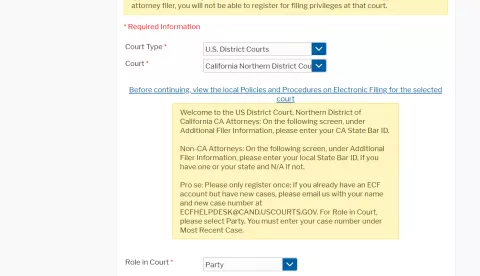
Be sure to check the acknowledgment box.
Review your information to make sure it is correct.

Step Four
Under “Additional Filer Information,” in the box that says “Most Recent Case,” enter the case number in which you are a party and wish to e-file. Failure to fill out this box will result in a rejection of the application. The format of the case number should not include the Judge's initials. For example, a case number 11-cv-11111 ABC, should be entered either as 11-cv-11111 or 11-11111.
Choose your preferred delivery method and format for receiving notices of filing.

Click “next.”
Review the information on the following screen, then click “next.”
Review the information on the following screen, click the boxes to acknowledge that you have read the information, then click submit.
Step Five
Please wait for confirmation from the ECF Helpdesk that your application has been processed.The ECF Help Desk can help answer your technical questions, but will not be able to help you e-file. The Help Desk is open from 9:00 a.m.–4:00 p.m., Monday to Friday, and can be contacted at ecfhelpdesk@cand.uscourts.gov or (866) 638-7829.
Attorneys are required to use Electronic Case Filing (ECF or “e-filing”) for all civil and criminal cases in this court. Please refer to Civil Local Rule 5-1 for the Court’s rules pertaining to electronic filing. Registration for ECF access with PACER alone does not complete the admission process. Attorneys must also register with ECF before applying for admission to the bar of the Northern District of California.
Civil cases (with attorney representation) must be opened in ECF. Initiating documents in criminal cases must be filed manually, unless instructed otherwise by the court. All other documents in criminal cases, if the defendant is represented by counsel, must be e-filed.
Registration Instructions for Attorneys
Step One
Each person who is requesting to e-file, must have a PACER account. Once you have a PACER account, open the PACER link: https://pacer.uscourts.gov/.
On the PACER tab, click on the “Log in to…” on the top right corner. After clicking the link, you will have three boxes. Choose the box that says, “Manage PACER Account.”
Step Two
After you have entered your login, you should see tabs below your account information. Click on the tab that says, “Maintenance.”
Choose the hyperlink that says, “AttorneyAdmissions/ E-File Registration.”
Step Three
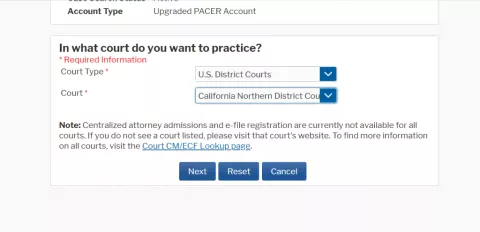
Choose court type as “U.S. District Courts.”
Choose court as “California Northern District Court.”
Click on “E-File Registration Only.”
Be sure to check the acknowledgement box.
Review your information to make sure it is correct.
Step Four
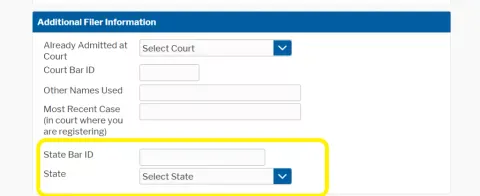
Under “Additional Filer Information,” be sure to fill in the box that says, “State Bar ID” and “State.” Failure to fill out this box will result in a rejection of the application.
Choose your preferred delivery method and format for receiving notices of filing.
Click “next.”
Review the information on the screen and click “next.”
Review the information on the screen, click the boxes to acknowledge that you have read the information, and click "submit."
Step Five
Please wait for confirmation from the ECF Helpdesk that your application has been processed.
If you are not an attorney, but must e-file for an attorney (that is, you assist an attorney as a paralegal, secretary or other law firm staff member), here is the solution for you:
Per Local Rule 5-1, an attorney may share a CM/ECF login information with a staff member who may e-file on behalf of the attorney (such as a paralegal or assistant). An attorney may also add a secondary email address to receive notification of e-filings (“NEFs”) in the case. This is useful if the staff member does not have access to the attorney’s email.
Why is E-Filing Registration Limited To Attorneys & Pro Se Litigants?
Per Local Rule 5-1, the e-filing login and password together constitute the filer’s signature for purposes of Rule 11 of the Federal Rules of Civil Procedure, which provides:
(a) Signature. Every pleading, written motion, and other paper must be signed by at least one attorney of record in the attorney’s name—or by a party personally if the party is unrepresented. The paper must state the signer’s address, e-mail address, and telephone number. Unless a rule or statute specifically states otherwise, a pleading need not be verified or accompanied by an affidavit. The court must strike an unsigned paper unless the omission is promptly corrected after being called to the attorney’s or party’s attention.
Just as paper pleadings must bear the attorney’s or pro se litigant’s signature (not an assistant, agent, etc.), electronically filed documents are presumed signed by the e-filer.
This policy is authorized by Federal Rule of Civil Procedure 5(d)(3), which provides:
(3) Electronic Filing, Signing, or Verification. A court may, by local rule, allow papers to be filed, signed, or verified by electronic means that are consistent with any technical standards established by the Judicial Conference of the United States. . . . A paper filed electronically in compliance with a local rule is a written paper for purposes of these rules.
Therefore, since the e-filer is virtually “signing” the document by logging into the system and submitting a PDF file, only attorneys and pro se litigants may register for E-Filing.
Contact Information
CAND
On the web at https://ecf.cand.uscourts.gov/
Email us at ecfhelpdesk@cand.uscourts.gov
Call us at (866) 638-7829
PACER
On the web at www.pacer.gov
Email the PACER service center at pacer@psc.uscourts.gov
Call PACER at (800) 676-6856
CM/ECF FAQs
- Go to www.pacer.uscourts.gov and log into Manage My Account.
- Click on the Maintenance tab.
- Click on Update Personal Information. If the name is incorrect, make the necessary edits. If the name is correct, make a small change, such as adding or deleting a middle initial. This information may be changed back after the request has been sent to the court.
- Click Submit. Please allow up to one business day for the ECF Helpdesk to process your request.
- Go to www.pacer.uscourts.gov and log into Manage My Account.
- Click on the Maintenance tab.
- Click on Update Address Information. Scroll down to the section that has the heading, Apply Updates to Selected Courts. Choose the court(s) you with to update. If you do not see the court you wish to update, you may make a small change in the address, such as changing Avenue to Ave.
- Click Submit. It can take up to one business day for the changes to be updated in ECF.
- Go to www.pacer.uscourts.gov and log into Manage My Account.
- Click on the Maintenance tab.
- Click on Update E-file Email Noticing and Frequency.
- Select the courts that these changes are applicable to by clicking the Click to apply changes to this court box.
- Enter the Primary Email in the text box and the same email in the Confirm Email text box.
- Select your preferred Email Frequency. The most common is At the time of filing.
- Select your preferred Email Format which is typically HTML.
- Click Submit to send the update to the courts you have selected. Please allow one business day before the changes reflect on the account.
Yes, docket information for the Northern District of California is available via CM/ECF.
Introduction
On October 25, 2021, the Northern District of California adopted the NextGen CM/ECF system. Registered e-filers must take steps in order to continue to file electronically in the Northern District after that date.
Prior to the court’s adoption of NextGen, attorneys and pro se e-filers were required to maintain a separate CM/ECF account for each court in which the attorney or party was a registered e-filer, in addition to a PACER account. NextGen CM/ECF simplifies that process by combining CM/ECF and PACER accounts into a single “Central Sign-On” account. E-filers no longer need a separate CM/ECF account for each NextGen court. The Central Sign-On account will permit e-filers to view documents through PACER, as well as electronically file documents in each NextGen court (district, bankruptcy, and appellate) where the attorney or party is a registered e-filer.
Attorneys and pro se parties who are already registered e-filers must follow the instructions below. Pro se parties who file manually only are not required to take any action.
How to Link your CM/ECF account(s) with your upgraded individual PACER account.
On or after the NextGen go-live date you must link your CM/ECF and PACER accounts. Linking is a one-time process that can be completed only after the court is live on NextGen CM/ECF. Failure to link your CM/ECF account(s) with your upgraded individual PACER account will prevent you from filing electronically after the NextGen “go-live” date.
On or after the NextGen go-live date, link your court-issued CM/ECF account and your upgraded PACER account by going to the court’s CM/ECF site and clicking the “Document Filing System” link. You will be automatically redirected to PACER to complete this process. Link your CAND account at: https://ecf.cand.uscourts.gov.
- Log in with your individual upgraded PACER user name and password.
- Click Utilities, then click “Link a CM/ECF account to my PACER account.”
- Enter your current CM/ECF credentials in the CM/ECF login and CM/ECF password fields. Click “Submit.” Verify that the CM/ECF account and PACER account listed are accurate. If so, click “Submit.”
- You have successfully linked your account. You will now use only your PACER account to access both PACER and CM/ECF for this court. Press F5 to refresh the screen andview the Civil and Criminal menu items for filing.
Do you practice in multiple Federal Courts?
If you practice in more than one Federal Court you must link each of those CM/ECF accounts with your one upgraded PACER account as each court adopts NextGen over the coming months. See a list of NextGen courts below.
How will I access PACER and NextGen CM/ECF?
After NextGen goes live, you will go to the PACER website and use your Central Sign-On account to view dockets through PACER and also to file electronically in courts using the NextGen CM/ECF system. Not all courts will adopt NextGen at the same time. Until a court does adopt NextGen you will continue to access that court’s legacy CM/ECF system through their local website using the account information issued by that court. See a list of NextGen courts below.
After NextGen goes live, who do I contact for help with my account?
After NextGen goes live all account maintenance requests will be handled by the PACER service center (see contact information below). You will need your PACER account number when contacting PACER.