



Effective May 1, 2018, digital audio recordings of select court proceedings can be downloaded from pacer.uscourts.gov. The digital audio recordings will be posted to the docket as MP3 files attached to PDF documents.
Important Note: The digital recording is not an official record, but is provided as a convenience to the public. In accordance with 28 U.S.C. § 753 (b) "[n]o transcripts of the proceedings of the court shall be considered as official except those made from the records certified by the reporter or other individual designated to produce the record."
Technical Requirements
Before you begin:
- Even though you can open and view PDF files within most Internet browsers (Explorer, Edge, Chrome, Firefox, Safari, etc.) you must have the Adobe Acrobat application installed on your computer to access audio files that are embedded within PDF documents. Most versions of Adobe Acrobat (Reader, Standard or Pro) are compatible.
- Set up your computer so that PDF files always open in the Adobe Acrobat program, and not inside your browser's PDF viewer. This will make accessing the audio attachments much easier. View set-up instructions (helpx.adobe.com).
Accessing Audio Files
- Log into CM/ECF, then go to Reports → Docket Sheet, and search for your case number.
- On the docket sheet, entries with attached audio files will display as shown in the example below:
| Date Filed | # | Docket Text |
| 04/06/2018 | 123 | PDF with attached Audio File. Court Date & Time [ 4/6/2018 1:21:19 PM ]. File Size [ 96 KB ]. Run Time [ 00:00:12 ]. (courtspeak). (Entered: 04/06/2018) |
- Click the number link to open the PDF; if you've set up your computer as described above, it should open in Acrobat.
- If the PDF opens within the browser, save the file to your computer (Save or Save As). (To display the Save icon, click on the center of the PDF file, or press F8.) Then open Adobe Acrobat, and open your saved PDF file from Acrobat (File → Open...).
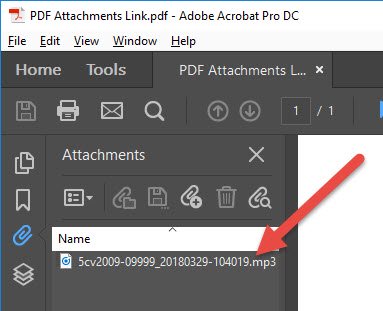
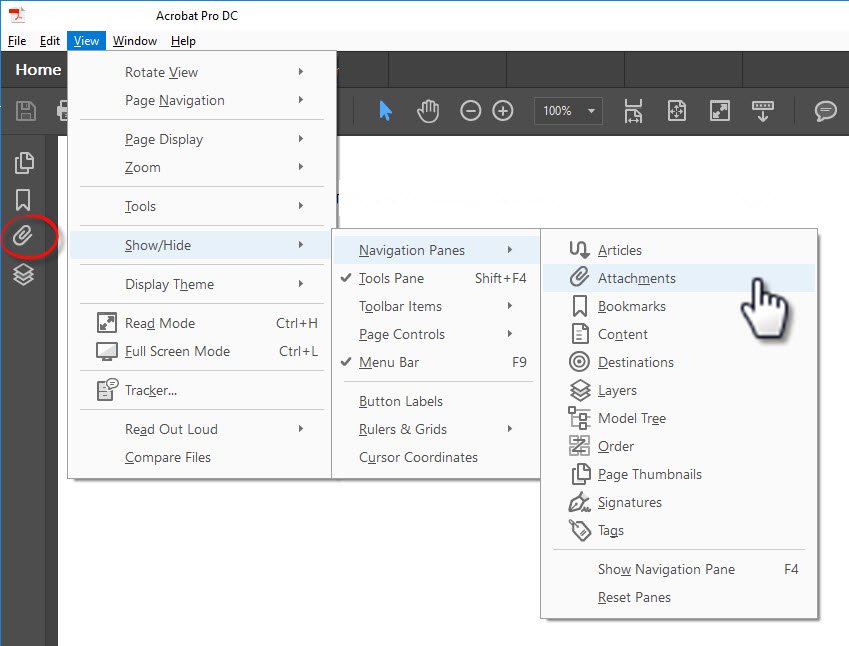
- With the PDF file open in Acrobat, click the Attachments tab or the Paper Clip icon. (Don't see the Attachments tab? Look in Troubleshooting & FAQs on this page.) This will open an attachments window, where the MP3 audio file will display:
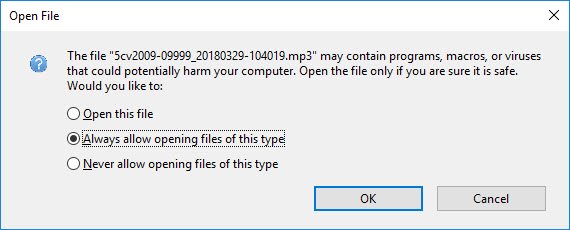
- Double-click on the file name and a dialog box (shown below) may appear. Select either Open this file or Always allow opening files of this type radio button to proceed.
- Your computer's default media player (Windows Media Player, iTunes, etc.) should open and you can play the MP3 file. Click the Disc icon to save the MP3 file to your computer.
Troubleshooting & FAQs
Q. How soon after a hearing will the audio file be posted to the docket and available on PACER?
Q. How much does it cost to download an audio recording?
Q. I don't have Adobe Acrobat on my computer. Where can I get it?
Q. I'm looking at my PDF and I don't see the Attachments tab.
Q. I'm playing the audio file but I can't hear anything.
Q. I can't play the audio file.
A. Try the following:
- Make sure your Adobe application is up to date.
- Make sure your media player is up to date, and/or try with another media player (such as iTunes, Audacity, Real, etc.).
- Make sure you can play regular MP3 files.
- Try saving the MP3 file directly to your computer, then open it from there.
- Check if anyone else is having the same issue.
Q. The recording is from the wrong hearing or a different case.
Q. Is there time-code within recordings?
A. The MP3 file format does not included any embedded time-coding, so you can only see duration, and not the exact time of day within the recording. However, the file name formatting does show the exact start time, so you can extrapolate from there.
Example: 5cv2009-09999_20180329-104019.mp3
- 5cv2009-09999 = Case number 5:09-cv-09999
- 20180329 = Date 2018-March-29 (YYYYMMDD)
- 104019 = Time 10:14:19 (HHMMSS)