



On October 25, 2021, the Northern District of California transitioned to NextGen. As a result, ECF account information is maintained in PACER. All changes or updates to the ECF account information are done in PACER.
Update requests are sent to the ECF Helpdesk for processing. Please allow up to one business day for requests to be processed. If further assistance in needed, you may contact PACER at 800-676-6856.
How do I update the name on my ECF account?
- Go to www.pacer.uscourts.gov and log into Manage My Account.
- Click on the Maintenance tab.
- Click on Update Personal Information.
- If the name is incorrect, make the necessary edits.
- If the name is correct, make a small change, such as adding or deleting a middle initial.
- This information may be changed back after the request has been sent to the court.
- Click Submit.
- Please allow up to one business day for the ECF Helpdesk to process your request.
How do I update my firm address on my ECF account?
- Go to www.pacer.uscourts.gov and log into Manage My Account.
- Click on the Maintenance tab.
- Click on Update Address Information.
- Scroll down to the section that has the heading, Apply Updates to Selected Courts.
- Choose the court(s) you with to update.
- If you do not see the court you wish to update, you may make a small change in the address, such as changing Avenue to Ave.
- Click Submit.
- It can take up to one business day for the changes to be updated in ECF.
How do I edit a primary e-mail address?
- Go to www.pacer.uscourts.gov and log into Manage My Account.
- Click on the Maintenance tab.
- Click on Update E-file Email Noticing and Frequency.
- Select the courts that these changes are applicable to by clicking the Click to apply changes to this court box.
- Enter the Primary Email in the text box and the same email in the Confirm Email text box.
- Select your preferred Email Frequency. The most common is At the time of filing.
- Select your preferred Email Format which is typically HTML.
- Click Submit to send the update to the courts you have selected.
- Please allow one business day before the changes reflect on the account.
IMPORTANT:
- ECF registrations are by attorney (not by the case or by the firm) and remain valid for life;
- Per Civil Local Rule 5-1, it is the attorney's responsibility to keep the profile information (especially the email address) valid and current.
- Sharing CM/ECF filing credentials and PACER account credentials with a third-party service provider or designating that provider as a secondary recipient of a Notice of Electronic Filing or Notice of Docket Activity (NEF/NDA) will give it access to sealed case information and documents in violation of court order. You are urged to use caution in your computer security practices to ensure that sealed documents to which you have access are not disclosed. Fee exempt users should not share the documents they obtain from PACER under the exemption, unless expressly authorized by the court.
The attorney coming INTO the case should e-file a Notice of Substitution of Counsel under his or her own login. This will add the attorney to the case immediately and when the notice is processed, the attorney leaving the case will be terminated by the clerk.
First, make sure your profile is up to date, then e-file a Notice of Change In Counsel. Anyone on the case can e-file this notice, not just the attorney who left.
Notices of Electronic Filing (NEFs)
The CM/ECF system automatically sends an email each time something new is filed in a case to:
1. Attorneys of record and registered pro se litigants; and
2. All others, such as journalists and members of the public, who have registered for Special Mailing Group (SMG) accounts to receive email notifications of case activity.
These emails are called “notices of electronic filing,” abbreviated “NEFs.”
If you are an attorney of record in the case, you should be receiving emails automatically. If you are not receiving emails, please confirm that you have properly appeared in the case and are shown on the docket. See Civil Local Rule 5-1(c)(2) for more information on appearance.
If you are not an attorney of record in the case but rather a journalist or interested member of the public (which can, of course, include an attorney not associated with the case), this page is for you. If you have not yet set up a Special Mailing Group account, see Self-Registration Instructions for Special Mailing Groups.
NEF FAQs
An attorney should not be listed as a secondary e-mail address for another attorney. Per Civil Local Rule 5.1, each attorney is required to register for his or her own ECF account.
- Log into ECF.
- Go to Utilities > Your Account > Maintain Your Account.
- Click the Email Information button.
- Click the add new e-mail address link.
- Enter the e-mail address in the text field to the right of Primary e-mail address. As you
enter the e-mail address, more options will appear – select any you deem appropriate. - When finished, click the Return to Person Information Screen > Submit on the following page.
- You will next see a confirmation screen indicating that the update was successful.
- Log into ECF.
- Go to Utilities > Your Account > Maintain Your Account.
- Click the Email Information button.
- Click the link to the Secondary e-mail address to be modified.
- The e-mail address will appear under Configuration Options. Modify the address in
the text box. - When finished, click the Return to Person Information Screen > Submit on the following page.
- You will next see a confirmation screen that the update was successful.
- Log into ECF.
- Go to Utilities > Your Account > Maintain Your Account.
- Click the Email Information button.
- Click the link to the Secondary e-mail address to be deleted.
- In the Configuration Options text field highlight the e-mail address and press the
BACKSPACE key. - When finished, click the Return to Person Information Screen > Submit on the following page.
- You will next see a confirmation screen that the update was successful.
- Log into PACER.
- Go to Manage My Account > Maintenance > Update E-File Email Noticing and
Frequency. - Select the courts that these changes are applicable to. Then select the Click to apply
changes to this court checkbox. - Enter and confirm your Primary Email address in the appropriate fields.
- Select your preferred Email Frequency. The most common option is “At the time of
filing”. - Select your preferred Email Format which is typically .html.
- Click Submit to send the update to the courts you have selected. Please allow some time
before those changes are updated.
- Log into ECF.
- Go to Utilities > Your Account > Maintain Your Account.
- Click the Email Information button.
- Select the e-mail address at which you would like to receive email notifications on the case; if you are an attorney, please use your primary e-mail address.
- In the “Case-specific options” section, look for the field for Add additional cases for noticing.
- Enter the case number and click Find This Case.
- Select the correct case and click Add case(s).
- The case will now appear in the section under “These cases will send notice per filing”.
- When finished, click the Return to Person Information Screen > Submit on the following page.
- You will next see a confirmation screen that the update was successful
The email will contain a hyperlink to the case number linking to the case docket) and the docket number of the new document (e.g. 423) linking to the document. When you click one of the hyperlinks, you will be prompted for your PACER login. You will be charged for accessing dockets and documents over PACER’s quarterly maximum number of free pages (but you can save or print them for future reference). You will not be able to access restricted filings, such as under seal documents, but you will be notified of them.
Yes. That email address will only receive notices on specified cases. New cases that the primary email address is added to will not appear for that secondary email address.
- Click on the e-mail address you want to make changes to.
- On the right, look for the following item and change it to No.
- Also on the right, find the box that lists the cases.
- Click on the number of the case you do not want NEFs sent in and click Remove.
- When finished, click Submit All Changes.
- You will get a confirmation screen that the update was successful.
ECF Mobile Query
ECF's Mobile Query feature is a more user-friendly, intuitive way to conduct ECF queries and view dockets and documents on an iPad, iPhone, or other smartphone. Note that you cannot e-file from Mobile Query.
How To Use Mobile Query
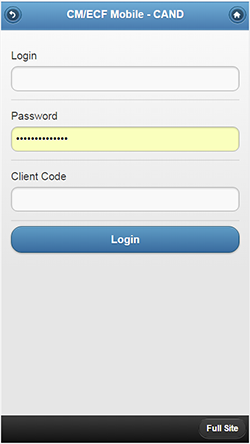
On the login screen, type your PACER (not ECF!) login name & password, and then touch Login to log in to PACER.
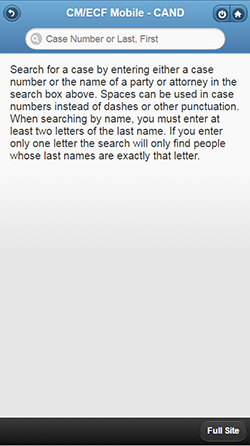
From this screen, you can enter the case number, party name OR attorney name, and then click Search in the bottom right corner of the screen.
Enter the case number in either of these two formats:
09 2292 or 09-2292.
Enter a party or attorney name with the entire last name or just the first few letters.
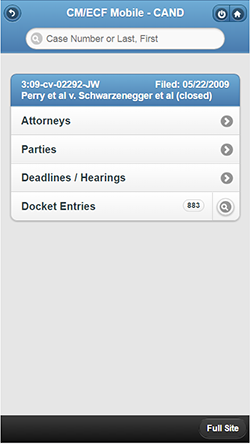
From the screen displaying your case name and number, you can select Attorneys, Parties, Deadlines, or Docket Entries. After selecting any of the first three, use the Back button to return to the case menu page.
On the “Docket Entries” line, touch the number to display all entries OR touch the magnifying glass to search for selected entries. You can search by docket number or docket text (e.g. an ECF event, party, or filer name).
When the docket entries you have selected are displayed, touch a document number to view a document. Use two fingers to scroll through a PDF document.
At any time when you are logged in, you can enter another case number, party name, or attorney name in the search box at the top of the screen.
To end your session, click the power button (circle with the line) at the top right to log out. And then close the browser window.
Bookmarking Mobile Query to your device's home screen
From the login screen, you can save Mobile Query to the home screen on your device by following the steps appropriate for their device type.